
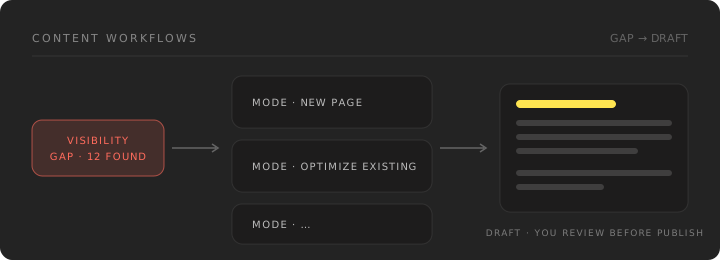
A visibility gap does not necessarily mean you need another page. Stride checks existing content before recommending a new draft or an update.
How it connects to your scans
Content generation is driven by scan evidence: the prompt you're missing, what the engine cited instead, and which of your existing pages came closest. That context goes into the draft.
One coverage decision across content
Stride uses the same prompt-to-page relationship in Prompts, Content Gap, Topics, Create Content, Optimize Content, and Actions. A confirmed connection always means that one indexed page supports that exact buyer question. Similar questions may appear together for review, but similarity never creates or copies a page connection.
Create Content keeps each exact tracked question distinct. Related questions to plan appear before a draft exists. Open Review coverage to compare each question's relationship, measured answer evidence, current page, and any existing action. A scoped draft shows Covers N related questions only when you confirmed which questions it addresses; similar wording alone never proves that a page answers another question.
When you select a tracked question in Create setup, Stride suggests other active tracked questions with a compatible page purpose, even when no review group was prepared. They start Not selected. Choose Include only when one page can answer that exact question; choose Separate when it needs its own page. A suggestion never inherits citations, measurement, or a page connection from the primary question. You can also type a new question without using the related-question scope.
Select the questions the page should address and choose a primary question. Create one focused page opens the Create setup with the complete question list; deselected questions remain explicitly excluded. Split into workstreams creates coordinated Actions Project work when the questions need different pages. You can instead confirm one indexed page for only the selected questions. Suggested page matches do not count until you confirm them.
Agent recommendations check existing content
Before recommending content work, the Agent checks your indexed pages, related page text, and existing work for each buyer question. A missing mention or citation is visibility evidence, not proof that you are missing a page.
An update recommendation links the existing page and explains what needs checking or changing. A new-page recommendation must explain a distinct reader purpose after reviewing relevant existing pages. Suggested matches remain advisory; they do not confirm a question-to-page connection.
If a draft already exists, continue it rather than starting another. Recently published work may need time for measurement. If the inventory or retrieval is incomplete, the Agent recommends reviewing coverage instead of claiming that another page is needed. Saved Agent recommendations are checked again before Create or Optimize saves a run; older unreviewed briefs need a new review.
Content Gap — measured diagnosis, then Plan
Content Gap (Content → Content Gap) merges your tracked-prompt performance with the citations from your latest trusted, comparable full scan and shows a count-led gap for every tracked prompt: how many measured answers named you, how many cited your own site, and which competitor pages engines cited instead.
Each measured prompt appears as its own row with its own scan evidence, confirmed page relationship, and work item. Search and focus filters narrow the rows without combining their measurements. Open a row to inspect that question's exact evidence; use Create setup or Review coverage to plan more than one tracked question together.
The detail drawer keeps every measured denominator visible — Stride never reports "not measured" as a fabricated zero. If a configured competitor has no tracked domain, Stride says so rather than guessing which pages it cited.
The Measured gaps table shows one row per measured prompt, with the date of the latest trusted scan above it. Coverage is the share of measured answers that cited your own pages (for example, "Your pages cited in 1 of 8 measured answers · 13%"). Mentions shows how many measured answers named you, such as 2/8 · 25%. Competitors shows which tracked competitors were cited and across how many engines. A prompt without usable measurement reads Not measured, never 0%. Filter rows with All gaps, Needs content (no indexed page is connected yet) or Page to improve (an indexed page already covers the question). These are observed counts, not a synthesized content score.
Prompts with no usable full-scan evidence yet appear in a separate Track before you plan list — real candidates worth tracking, but not yet a measured gap. Choose Track question to add one to your tracked prompts; Content Gap stays unavailable for them until trusted measurement exists. Content Gap never claims a causal lift from a scan comparison, and it does not become a parallel work queue. Choosing Plan this content creates or reopens the matching action; drafting, delivery, and proof continue there and in Create Content.
The detail drawer header shows the prompt with its Coverage, Analyzed date, Type, and Mapped page (Available or None). The Overview tab leads with What the gap shows, then Measured evidence (Brand mention and Own-site citation), any confirmed content relationship, and one non-binding Suggested starting point. The Cited pages tab lists the competitor pages engines cited instead.
Choose Plan this content or Plan page improvement to open the action's Plan without spending a content credit. The suggestion does not lock the destination or format: Plan owns the page destination, full content type library, length, voice and Persona, evidence, and brief. Nothing generates until you confirm the plan and choose Generate in Create.
Knowledge Base — see exactly what Stride knows
Before scan evidence becomes a draft, Stride checks it against Knowledge
Base (/dashboard/content/knowledge). The page separates three kinds of
knowledge so evidence from one context cannot silently become proof in another:
- Your brand — browse the claims Stride may use about your product, grouped by fact type. These claims come from facts your team entered, sources your team supplied, or verified pages on your own site. Site understanding and Brand voice sit here; Personas is its own tab.
- Competitors — browse claims backed only by evidence from the official domains configured for each competitor. Your uploads, pasted notes, and own-site pages never become competitor proof.
- Brand knowledge base — manage the exact public pages, document files, and notes your team supplied. Stride versions each source and retrieves from the latest ready version automatically on every new Content Agent run.
The curated Brand and Competitor lists lead with the inferred statement Stride may use. Expand a statement to inspect its exact source, quote, confidence, observation date, and correction actions. In Brand knowledge base, the table shows an extracted preview; expand a source's details when you need the parsed text. That keeps the main knowledge surface readable without hiding the underlying evidence.
Facts age out on a schedule—as fast as 30 days for pricing and longer for slower-moving claims—and are automatically held back from new drafts. Use Add a confirmed fact under Brand facts when Stride needs a first-party product statement that is not on file yet. The statement is recorded as customer-provided evidence with its authenticated author and observation date; it can support only your own brand, never a competitor. You can inspect, correct, archive, or manually confirm an outdated record, but routine review is optional. When a draft's evidence gate identifies a gap, the action can re-read configured official competitor pages through its evidence-recovery step. Brand voice sets the tone and terminology every draft starts from. Personas are reusable reader profiles. During onboarding, Stride may offer two or three business-specific starter personas for you to keep, edit, or remove; if suggestions are unavailable, setup continues without showing an extra step. In Knowledge Base, New persona can Generate from my brand using the saved site profile, or Describe the audience with a short brief. Both paths fill the complete persona form for your approval. Nothing is saved until you confirm it. If the brand profile is too thin to draft a useful persona, Stride says so and points to Site setup instead of inventing one. Editing a saved persona changes future drafts, never a draft already written.
In Create Content, Audience persona chooses who the page addresses. Writing perspective is a separate, optional use of a saved persona: it guides explanatory style and vocabulary without changing the reader. For example, choose a coach as the writing perspective while keeping players as the audience. With no audience persona selected, the brief, question, and saved site audience guide the reader; with no writing perspective selected, the draft uses the brand voice. Both choices are saved with the run and restored when you regenerate with different settings. Existing personas and previous drafts keep their original meaning.
Adding and managing sources
Sources are tenant-scoped and versioned. The library is built from three kinds of input:
- Page URLs — paste one public URL per line. Stride fetches and processes only those exact pages; it does not crawl links or follow a site map.
- Files — upload PDF, DOCX, TXT, Markdown, HTML, or CSV. These are the six core supported formats; other file types are rejected.
- Notes — paste free-form text directly into a note source.
After you add a source, Stride queues it for processing, splits the ingested
content into chunks, and stores the chunks with embeddings for retrieval. A
successful refresh creates a new immutable version in
knowledge_source_versions and advances the source's current version, so
older draft outputs can still point to the exact version that grounded them.
You can refresh a source to re-ingest it, or archive a source to remove
it from active retrieval while keeping its history.
What sources are not
Knowledge Base sources do not turn Stride into a general web crawler or enterprise file system:
- Stride does not run OCR or extract text from scanned PDFs.
- Stride does not process archives (ZIP, RAR, etc.) or executable files.
- Stride does not connect to Google Drive, Notion, or other third-party document platforms.
- Stride does not recursively crawl websites from a seed URL.
A customer-provided source can support claims about your own product, but it can never stand in for verified competitor evidence. Claims about competitors still require the official, first-party, or measured evidence Stride uses elsewhere, and are tracked in the same claim ledger that your content drafts and actions respect.
Create Content and Optimize Content
Create Content (/content/create) opens on your ongoing pages
and any related questions ready to plan. Create content opens the config
modal. Search tracked questions by their text, Topic, buyer intent, or tracking
label; the picker shows each question’s own-site citation dial alongside its
measured answer counts, or says when measurement is unavailable. You can also
type a new question. Choose content type, length, brief, knowledge sources,
restrictions, author, tone, an optional audience persona, and an independent
writing perspective.
If you started from Review coverage, the confirmed primary question and every addressed or excluded question stay visible in setup. The same choices are available for compatible questions suggested directly in Create setup. Save as draft keeps the setup without calling a model or using a content credit. Run Agent writes one page for the explicitly included questions, holds one standard content credit, and spends it when the draft is ready. It does not write one draft per related question; a failed run releases the credit.
Both actions open the new page’s editor directly. While the saved page loads, the metadata, document, and workflow areas stay visible with an opening status. After Run Agent, the editor shows generation progress and the draft as it is written. You can stay on the page while the agent works; when generation finishes, the draft is ready to review and edit.
Content types
Each content type is written to its own conventions rather than one house shape. A press release stays in third person and uses only the facts you supply; an opinion piece is written in the first person of the author you name, or as your brand when you name none; a review written without first-hand experience reads as an overview, with no testing language or rating. Your brand voice still sets the tone. The word count you choose is a ceiling, not a target, and Stride adds no section, such as an FAQ, that the type does not use unless your brief asks for it.
Some types ask for their own details in setup, such as the thesis for an opinion piece, an approved quote for a press release, or first-hand experience for a review. When a detail is missing, Stride writes around it instead of inventing it, and lists what would make the draft stronger under Needs from you in the Research brief step of the Workflow view. Service page, Location page, and Category page are also available as content types.
After writing, Stride checks the draft against its content type. Some problems have one right fix, so Stride makes that edit and changes nothing else: a draft over its length, a quote you did not supply, a claim about a competitor's standing or history that no source backs, first-hand wording without supplied experience, words on your blocked list, a line that tells the reader something was not announced, extra links or padding in a press release, a claim about your own brand's age or standing that your material does not support, or commentary added to an interview. Stride keeps the edit only when it fixes the problem without adding a new one, trying once more if the first edit falls short, and Readiness shows Fixed after writing with what changed.
Anything that needs your judgement stays a note under Readiness: a figure you did not supply, a placeholder left to fill, or anything the edit could not fix. These notes never block the draft.
Brand rules and source roles
Under Knowledge Base → Brand facts → Brand rules, set your industry, the language drafts are written in, restrictions, blocked words, and legal exclusions. Every new content run follows them.
In Brand knowledge base, open a source to choose how drafts use it under Used in drafts as: Voice rules (a brand or style guide), Voice samples (posts, emails, copy that show how you sound), Facts, or Proof. Voice rules and voice samples shape tone and wording only; they are never used as evidence for a claim. A source you have not tagged is used as facts, and Stride suggests roles from its name for you to confirm.
Every tagged voice source is used on every draft, whatever the question is about. Create Content, action items and full rewrites in Optimize Content follow your voice rules and samples. Conservative and balanced optimizations follow your voice rules but keep the live page's own writing style.
An Agent-generated content Action appears in Actions with its source evidence collapsed for review. Set up in Create Content opens the normal content setup with the suggested question and an editable brief. If the Action names a competitor in a head-to-head brief, Create suggests Comparison even when the tracked question is broad. When that competitor is configured and an official page appears among the question’s cited sources, Create selects one such page for review; you can change the content type or source. A named comparison needs a selected cited page within the competitor’s configured official domain or product path. If no verified product facts are available from that page, the run stops rather than writing a generic options roundup and releases the held credit. The brief itself is an editorial suggestion, not proof of a competitor claim.
When you open Create or Optimize setup from an Action or an Agent brief, Stride preselects up to two pages cited for that question, under Cited pages in Create and Competitor pages in Optimize. Pages the Agent named as evidence come first, then the most cited page from each configured competitor. Stride reads the selected pages to plan the draft. Uncheck any you want to skip. A new Action plan and a coverage plan start the same way, and a plan you already saved keeps the pages you chose. The number of pages does not change the credit cost. Comparison setup is the exception: it selects nothing until you choose the rival, as described below.
Generic titles such as “your brand vs alternatives” do not name a rival. Choose one under Comparison target from the competitors already configured for your site; Stride does not select the first competitor automatically. Names that differ only in spacing, such as “Padelplay” and “Padel Play,” match the same configured competitor. Configuration identifies the rival, but a head-to-head comparison still needs a selected official cited page for the chosen question.
Choosing a Comparison target moves that rival’s official cited pages to the top of Cited pages, before the list is limited to ten rows. Pages within each group remain ordered by citation count. Changing the target does not check any pages or discard your existing selections; select the official page you want to use. If the question has no citation within that rival’s configured domain or product path, setup says so. Choose another tracked question or competitor, or verify the official domain in Settings.
If the Action names an existing page, Use an existing page instead opens Optimize with an editable draft direction. Opening setup alone does not create a draft or spend a credit. Once you save, return to the Action to continue the linked draft in Create or Optimize.
An Action to publish a page stays open when the draft is ready. Open its Create Content or Optimize Content run, publish the page on your site, then enter the live URL under Publication. Stride closes the Action when the page is verified or you confirm it is live. Finish Action appears only for older Actions whose page was verified before the automatic link was added.
Agent Actions that ask you to edit public page content open the Create or Optimize setup even if the original recommendation was tagged technical. Opening setup does not publish anything. For a technical change such as crawler access, choose Start work to open a saved checklist. Check off the steps as your team completes them; checking steps does not mark the Action done. Once the change is live, confirm that it is live and use Record completed work to log what shipped and start the Action's measurement record. If an older checklist was marked done without a recorded site change, choose Reopen unfinished Action to resume it.
For a finished Create draft, open Settings and choose Regenerate with different settings. This opens a new setup prefilled from the saved run. Change the prompt, brief, content type, or other settings before saving. For a head-to-head Comparison, choose the named competitor under Comparison target, then select a cited page within its official domain or product path under Cited pages. If the target is missing, setup takes you to the competitor selector; if its official page is missing, it takes you to the cited pages. Save as draft is free; Run Agent uses another content credit. The original draft remains available, and its Agent Action still links to it. If a saved prompt or cited page is no longer available, choose a current one before running.
If the question is not in your prompt pool yet, type it and leave Track this question on. Stride adds only that question, and normal prompt capacity limits still apply. At the cap the page is still written, and the publication card says Not tracked because measurement needs a tracked prompt. A newly tracked question is not measured until a later scan includes it. Stride does not invent a reading from before that scan.
When the draft is ready, enter the published URL and choose Mark as published. Stride fetches that page and checks it against the saved draft. A match records the page as verified. If the live page cannot be matched, you can confirm it yourself. Either confirmation starts measurement on a tracked prompt. The list then shows Published, and a published page cannot be deleted. A later edit returns it to ready until you mark it published again.
Drafts started before this change stay on the list and open the previous editor. The sections below describe that editor. New pages start from the Create list.
If an existing page or another Content Agent already owns the same objective, Stride keeps the setup open instead of generating duplicate content. The ownership check couples the proposed destination to its content type and named reader job, so a comparison of specific products is not treated as the same page as a general category article. Stride recommends the existing owner first. It offers a separate new page only when that destination, content type, and reader job have already passed the same ownership check used at generation time. Rejected routes remain rejected while the objective and indexed-page evidence are unchanged; Stride does not keep suggesting a renamed version of the same page. A page already ruled out as unable to serve the goal does not later block its replacement as if it owned that same goal. If no distinct route passes, Plan ends with No additional page warranted instead of sending you through another target-selection loop.
You can open the existing draft, optimize the page that already covers the objective, choose another tracked prompt, or accept one of the prechecked separate routes. Stride saves the route and rechecks it against newly indexed pages before generation. Confirming the route spends no content credit and does not generate a draft; generation still waits for your explicit Generate draft click.
For a new page, the Brief step compares up to five related indexed pages before outlining. It reserves the territory the new draft should add, names adjacent coverage not to recreate, and plans links to the pages that already answer those parts. A mismatched content type and reader job returns you to Plan before drafting. If the bounded analysis cannot complete, Stride pauses instead of assuming the page is distinct. This step does not reopen or silently change the route you confirmed: the current-corpus ownership check remains the routing gate.
After writing a new page, Stride checks that the complete draft delivers its reserved contribution, fits the page role saved on Plan, and supports factual claims with the exact evidence available to that run. Qualifiers such as quantity, frequency, mechanism, prerequisites, comparisons, and time scope must be supported too. Stride makes one bounded repair and checks the result again. If overlap remains, it sends the work back to Plan.
If a factual claim remains unsupported or overstated after repair, Stride opens the otherwise complete draft in Claim review. A numbered marker identifies each assessed passage without changing the draft’s reading width. Selecting a note briefly highlights its passage and opens a compact action bar beside the wording. The matching note stays in the Claims tab of the existing review rail; Workflow, GEO, and SEO remain available beside the draft. On smaller screens the same tabs open in Review draft.
Choose Edit wording to change, narrow, or remove the flagged text. Once the assessed wording is no longer present, its notice clears automatically. Choose Keep as written when you have reviewed the passage and want to dismiss the notice without changing the draft; that decision stays with the saved version. Claim notes do not block Mark done.
To give a future draft stronger first-party grounding, add an exact page, file, or note under Knowledge Base → Brand knowledge base and wait until it says Ready. Brief text can direct the writing, but it does not verify a new fact. Claims about competitors still require evidence from their configured official sources; your own note cannot verify them.
A known contradiction, an incomplete or unusable draft, a failed publication assessment, or a Plan conflict still pauses generation instead of creating an editable version. Those failed attempts do not spend a content credit.
To improve a page you already have, open Optimize Content
(/dashboard/content/optimize). The list shows optimizations you start there,
plus earlier optimize drafts tagged Legacy. Select Run optimization agent
to choose a tracked prompt, one of your pages, and a rewrite level. On the
prompt step, Stride suggests a measured question. After you select any prompt,
the page step suggests the best indexed page for that question. When none
matches, it suggests a new page on your site. The page stays unselected until
you use that suggestion.
Balanced is the default: it rewrites each section and keeps the page's headings. Full rewrite rebuilds the page from the research brief. Conservative makes light edits and changes only the sections that are failing. Save as draft and Run Agent both open an editor for that page. Run Agent rewrites that page and uses one content credit. The draft appears in the editor while it is still being written, then you can edit it. Use Copy draft to copy its H1 and body as rich text when the browser supports it, with Markdown as the fallback. Differences compares the rewrite with the captured source page; choose Back to editor to return to the editable draft. After publishing the updated page in your CMS, choose Mark as published. Stride checks the live page against the draft. If it cannot match the page, you can confirm it yourself. Measurement of the prompt starts from that date. Editing the draft later returns it to Not published. If the rewrite fails, the credit is returned and the failed step explains why. A stalled rewrite stops on its own and returns the credit. Open View reference analysis on a finished competitor step to see why that page gets cited. A readiness check scores the page you started with, and a recheck scores the finished draft. The list menu can delete a draft, a failed run, or a finished run that is not published. Published and running runs stay. If Run Agent cannot start, the reason appears next to the button, including when this month's content credits are used up. The list stays one step back, from the page path at the top of the editor.
A Legacy title still opens the earlier action. Accept, skip, verify, and publish keep working there until those drafts are removed. Select a legacy title to resume review, delivery, and proof.
Proposed section edits are reviewed one at a time:
- Choose Accept edit for changes you published and Skip edit for the rest. Each choice saves automatically, and Mark done stays unavailable while any actionable edit remains undecided.
- Copy a single section from its card, or use Copy accepted edits to copy all accepted additions and replacements together as Markdown.
- Publish the accepted edits, choose Continue to Mark done, confirm the publication time, then select Verify live page and mark done. Stride checks the compared page for the accepted copy before moving the Action to Done. If the page cannot be read or its formatting prevents an exact match, Stride offers an explicit manual confirmation instead of blocking completion.
Accepted and skipped choices stay attached to the immutable version you reviewed. If the published page or its cache has not updated yet, the confirmation explains what Stride could not find and remains available to retry. If Stride cannot read the public page, make it publicly reachable and retry; the Action is never marked Done silently.
Reviewing and editing a draft
Every draft opens in one editor — title, meta description, and body together, laid out to read like a finished page rather than a text box. Changes save automatically as you work; reload the page and your edits are exactly where you left them.
Alongside the draft, a GEO and SEO checklist lists the concrete requirements Stride checked for this version — things like naming your topic up front, covering the sections Stride planned for, and keeping your title and meta description in a healthy length range. Each shows as "X of Y requirements met," never a score out of 100, and only counts requirements that actually apply to this draft.
A Workflow view on the same draft shows how Stride produced this exact version — what it researched, how it planned the piece, and what it wrote — so you can see the reasoning behind what's in front of you. Older drafts saved before this detailed history existed say so plainly rather than inventing steps that didn't happen.
Stride runs a factual and intent check when it generates a draft. If you edit the title, description, or body afterward, that check is flagged as needing another look rather than shown as still passed — your edits always take priority, but Stride tells you when its own review is out of date.
Where to work content
Whether you started from Create Content or from a content action in your Actions queue, the work happens in the same action. The typical path:
-
Plan — the whole draft setup in one guided interview, using the same progressive sections as Create Content. The exact tracked prompt is already selected for the action. Choose whether to update an existing page or create a new one, then set the content type and length for new content, optional Persona and required tone, up to three measured sources, and the brief. For a new comparison Action, Comparison is suggested as the content type; you can choose another type, and a saved choice stays selected. Draft direction is always available: use it to name the page job, angle, must-cover points, or exclusions while the buyer question stays locked. It steers framing and structure; it is not product evidence. Add product claims as confirmed Brand facts in Knowledge Base so their provenance remains visible to generation and review. Content types that require factual details still show those fields separately. Completed sections collapse to readable summaries and remain editable; optional sections stay visible without blocking the plan once its required choices are complete. Comparison types also ask whether pricing belongs in the draft. There is no separate approach choice, and Create will not ask for the setup again. Nothing generates until you save the plan. Reopening the Plan step restores every saved selection so you can adjust and re-confirm it. If the action already has drafts and you change where the draft lands, Stride asks before saving that change.
-
Create — a review-only recap of the confirmed plan plus the generate action. Generate creates a review-required draft and records an immutable snapshot of the prompt, evidence, destination, and setup used for that run; it never publishes or marks the action done. If an older action cannot be bound to exactly one active tracked prompt, Actions keeps its existing generator available and links to a dedicated content draft rather than guessing.
-
Deliver — copy the reviewed draft into your Shopify or CMS editor, or record the implementation
-
Measure — after a passed declared live check, compare later trusted, comparable full sweeps with the recorded target and baseline
For a comparison brief, you can name the alternatives or ask Stride to find the top competitors for the selected prompt. A discovery brief uses competitors that appear in the live answers for that prompt, then verifies their cited official pages before drafting. Stride includes up to three source-backed options and stops for more evidence if fewer than two can be verified; it does not replace missing prompt research with the competitor list from Settings. Explicitly named alternatives — and the separate pricing choice — remain authoritative.
Completed and current stages reopen their work panel. Future stages stay visible and unlock in order, so the journey doubles as navigation without letting work skip required decisions.
Pricing changes the evidence and page-ownership checks. When you include pricing, Stride carries your selected destination into a linked pricing comparison and verifies official pricing sources before drafting. If the pricing objective fits a different existing page, Plan explains the conflict and asks you to confirm that route instead of silently replacing your choice.
A generated draft or a recorded implementation is not proof that a change is live. When work is recorded, Stride links the exact generated output to the implementation event and canonical Action proof record. Advancement still requires a passed declared live check and qualifying target-specific comparable evidence.
This is separate from Community Signals, which helps you draft talking points for Reddit threads — Stride never auto-posts there.
Workflow modes (site setting)
Under Settings, choose how aggressively Stride moves from proposal to draft:
| Mode | Behavior |
|---|---|
| Review required (default) | Generates drafts automatically, but nothing ships until you approve |
| Draft only | Surfaces recommendations without generating or applying content |
| Auto-approve | Coming soon on Scale (and Scale client sites under Agency): approved proposals will execute without a manual review step, with every automated action recorded in the audit trail. Until then this mode cannot be selected |
Workflow mode applies to content and optimization work in Actions — not to community outreach drafts, which always require you to copy and post manually.
Reviewing optimization proposals
When Actions has an optimization proposal, select Review proposal to see the evidence and questions it includes. Approve & generate drafts creates drafts only; it never publishes a change. Dismiss proposal leaves each question tracked, so a later scan can surface a new proposal.
Citation-change signals are separate from your work queue. Select Not now to hide one until the next comparable scan without removing the question from tracking.
Monthly limits
Content generation draws on an allowance set by your plan: monthly on Grow and Scale, weekly on Starter. Additional credits are available as add-on packs — see Plans & limits.
Revise a saved draft
Use Revise draft when a saved draft needs a focused change. Before you submit, Stride shows that the revision uses one content credit. If Stride cannot save a usable revision because generation fails or a quality check blocks it, the credit is returned.
Each successful revision becomes a new saved version. Use Version 1, Version 2, and later version controls to compare or reopen earlier work. Previous versions remain saved, and choosing an older version only changes what you are viewing — it does not delete newer work.
A revision keeps the destination and draft setup you confirmed in Plan. It cannot silently switch those decisions or publish the draft. Change planning decisions in Plan, then use Deliver when you are ready to publish or record the implementation.
Editing and publishing
Drafts are a starting point, not finished copy. Review everything before it goes live: AI-drafted content that ships unedited tends to read like AI-drafted content, and that works against you with both readers and engines.
Review before publishing
You are accountable for what's on your site. Treat generated drafts as a first pass from a junior writer who has read your scan data — useful, fast, and in need of an editor.
Plan & limits
Grow and Scale include monthly content credits: 25 on Grow, 100 on Scale. Starter includes 3 drafts a week, resetting every Monday at 00
UTC. An Agency client site gets its assigned plan's allowance. One credit is held per draft and spent when the draft is ready; a failed run releases it. Prepaid content credit packs stack on top and never expire.On Grow and Scale, credits hard-stop at zero. On Starter, a draft past the week's 3 uses a prepaid credit if you have one. If you don't, Stride offers a credit pack or an upgrade, and you can continue as soon as you've bought one.